

Someone photographs a product, circles an item on their phone or uploads a screenshot to Google.
That image becomes the starting point for a search. If your website appears, you could earn a visitor without the person typing a conventional keyword.
Google Search Console now makes this traffic easier to identify through its Web: multimodal search filter. The reporting covers Google Lens, Circle to Search on Android, image uploads and Chrome’s “Search this image” feature.
There is one important limitation: you can see the pages receiving visibility, but not the specific image or text query behind each search.
For digital marketers, designers, developers and online sellers, that changes the investigation. Instead of starting with a keyword, start with the page Google selected.
Where to Find Visual Search Data
Open Google Search Console and navigate to:
Performance → Search results → Search type → Web: multimodal
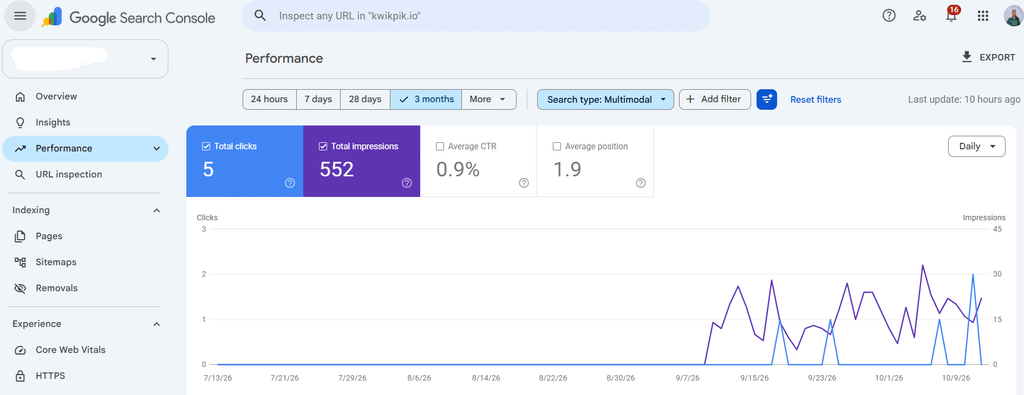
Google distinguishes this from Web: text-based and the separate Image search type, which covers results in the Google Images tab.
Review the available performance metrics, then open the Pages tab to identify landing pages. Keep the date range, country and device filters consistent when comparing results.
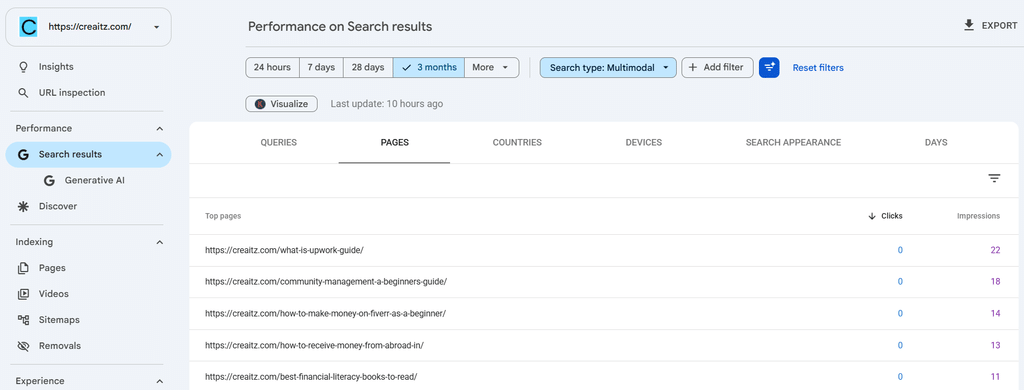
If your property shows no recorded activity, do not assume the report is broken or that every page has a visual-search opportunity. Check availability and allow for limited demand or reporting coverage.
Why the Missing Queries Matter
Google explains that multimodal searches mostly use images rather than text, so specific text-query data is unavailable. The Queries dimension is therefore unavailable for this search type.
You cannot reliably identify what someone photographed simply by looking at the destination page.
A product page receiving clicks might have matched a product photograph, packaging or another visual reference. These are hypotheses—not findings the report confirms.
Exporting the data into an AI tool may help organise pages or suggest questions. It cannot reconstruct the missing search inputs.
Use the report to choose what to investigate, not to invent the customer’s journey.
Start With One Page, Not the Entire Website
Suppose your store’s backpack page receives multimodal impressions while similar product pages show little recorded activity.
You can begin by comparing the pages:
- Are the product photographs clear and distinctive?
- Do they show useful angles and details?
- Are the images accessible and loading correctly?
- Does the surrounding text accurately describe the product?
- Are product names, specifications and availability clear?
For a designer or developer, this becomes a practical collaboration: review the visual assets and the implementation together.
A page performing well in text search but poorly in multimodal search is worth examining. However, that difference does not prove untapped demand. People may simply be less likely to search visually for that item.
Add Text-Search Context Without Pretending It Explains the Image
Once you identify a page in the multimodal report, investigate how people find that same page through conventional search.
Semrush’s Organic Traffic Insights combines connected Google Analytics and Search Console data with Semrush keyword data, helping you review landing pages alongside available keyword and engagement information.
Find your selected URL and inspect its available text-search keywords.
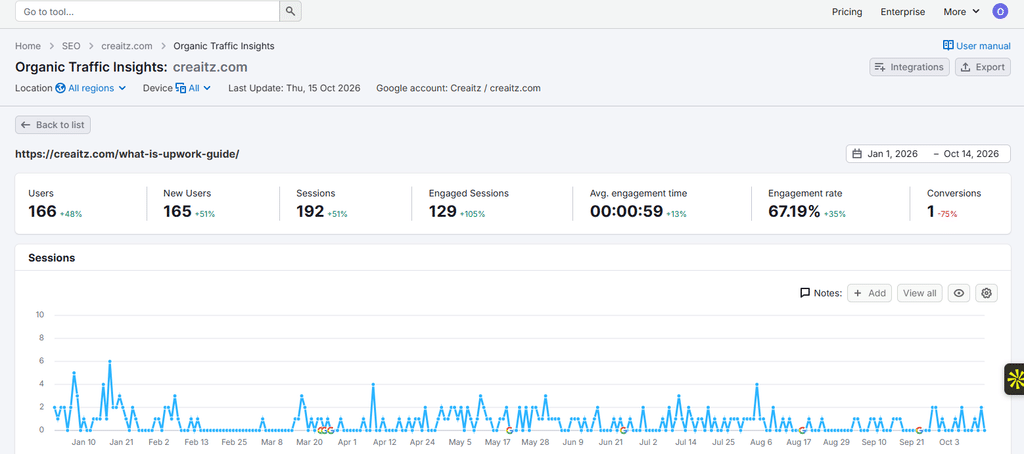
For the backpack example, those terms may help you understand the page’s established topic and whether its content describes the product clearly. They do not reveal which photograph triggered a multimodal visit.
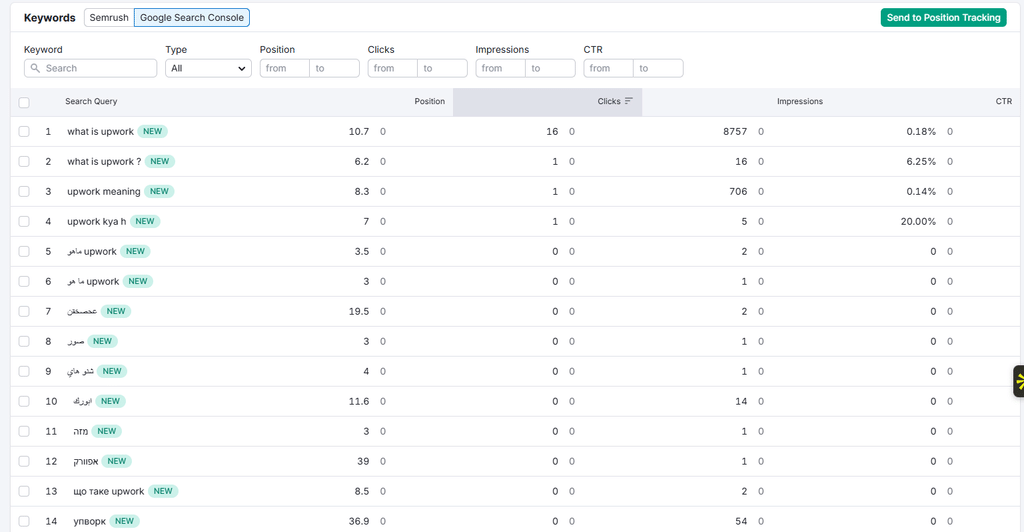
This distinction matters because “not provided” keyword reporting and missing multimodal query data are different problems. Connecting tools does not make Google’s unavailable visual-search inputs appear.
Turn Your Findings Into a Specific Fix
Next, investigate whether the selected page has technical problems.
Run a site audit and review relevant findings for the page and its images. A broken image or inaccessible page will give you a concrete issue to resolve.
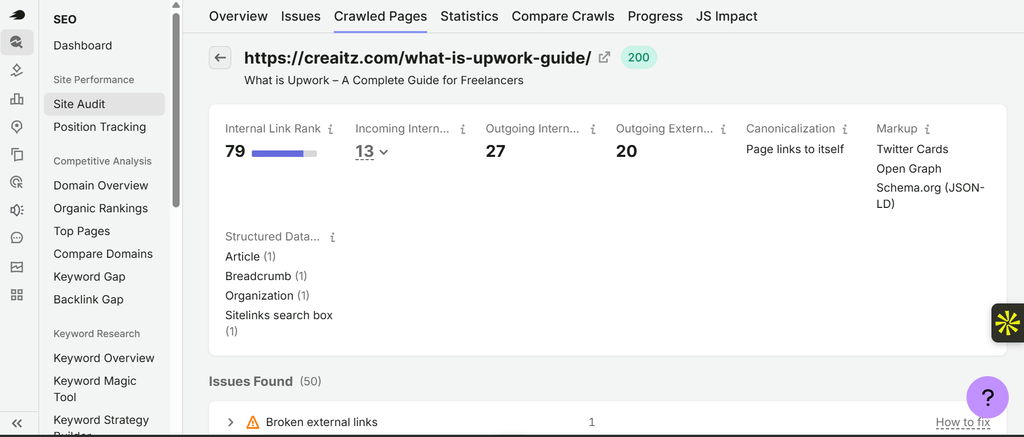
If there is no relevant issue, no need to present an unrelated warning as the explanation.
If you have pages that need closer content review, Semrush’s On-Page SEO Checker can provide you with competitor-based recommendations.
You can explore these page-review workflows with Semrush’s SEO Toolkit 7-day free trial today.
Test Changes Without Claiming More Than the Data Shows
Choose a manageable group of comparable pages. Record the starting metrics, then make a focused improvement—for example, replacing unclear photographs or fixing broken image URLs.
Document what changed and when. Review multimodal performance over comparable periods, allowing enough time to collect meaningful observations.
Track business outcomes too. For a shop, that could mean your product enquiries or purchases. For a digital professional, it might mean your portfolio visits or service enquiries.
An increase after an update is a useful signal, but it does not establish causation. Seasonality, demand and other search changes may also influence results.
A New View of Discovery—not a Complete Explanation
Visual search reporting makes a previously harder-to-isolate discovery route more visible. But it does not provide the full story behind every visit.
The practical approach is straightforward:
Find the landing page. Check its content and implementation. Form a testable hypothesis. Record the result.
For digital talents, this is another reason to connect creative work with technical execution and measurement. A useful photograph, a well-built page and an honest interpretation of the data will all contribute to the investigation.
The camera can start the search. Your job is to make the destination worth visiting.
Disclosure: This article contains affiliate links. If you purchase through them, Creaitz may earn a commission at no additional cost to you.
