

Your next search report needs a clearer definition of visibility.
A link appearing inside an AI answer, a visit to your website and a completed enquiry represent different interactions. As Google adds dedicated reporting for its generative search features, you have more information about the first of those interactions.
The challenge is understanding exactly what the report counts.
If you manage content, report to clients or run your own digital business, that detail affects the conclusions you can reasonably draw—and the changes you recommend.
Affiliate disclosure: This article contains affiliate links to Semrush. If you sign up through them, we may earn a commission at no extra cost to you.
What Google’s AI Search Reporting Includes
Google’s Generative AI performance report shows impressions for links to your site in supported generative features on Google Search, including AI Overviews and AI Mode.
Google says these insights rolled out worldwide on August 31, 2026.
You can examine impressions by:
- Page: which linked URLs appeared.
- Country: where the search originated.
- Device: desktop, mobile or tablet.
- Date: how appearances changed over the selected period.
Google provides a separate generative AI report for Discover. Search Labs experiments are excluded from the Search report.
These boundaries matter when you describe the data. Label your export with the report name, property, selected dates and active filters.
That gives you a reliable reference when comparing it with another dashboard later.
Begin With the Pages Behind the Total
Open the report for your verified property and review the Pages table.
Identify which important articles, product pages or service pages receive impressions. Compare periods of equal length and check whether the newest figures are marked as preliminary.
If you offer several services, examine whether appearances concentrate around one service while other important pages receive little visibility.
That observation gives you a question to investigate. Review the page’s information, relevance and technical accessibility before deciding what to change.
If the report is missing, Google’s documentation says your site may have insufficient impressions in the supported features. Your inclusion settings also deserve a check.
Avoid interpreting an unavailable report as a complete account of your brand’s presence across AI platforms.
Why Your Chart and Table May Differ
Check how each figure is aggregated before adding it to a presentation.
Google aggregates the main chart by property. If two results from your website appear in a generative search feature, they can count as one impression in the chart total.
The Pages table aggregates by page. That can produce a different total when you add its rows together.
Most page performance data is also assigned to the canonical URL. Check canonicalisation when a familiar URL seems absent from your export.
Dates use Pacific Time. If you work in West Africa Time, retain the source timezone in your reporting notes so daily comparisons remain understandable.
These details help you explain discrepancies without immediately assuming a tracking fault.
Review the Inclusion Control Before Changing It
In Google Search Console, select your website property, open Settings in the left-hand menu, then select Search generative AI to review your site’s inclusion settings.
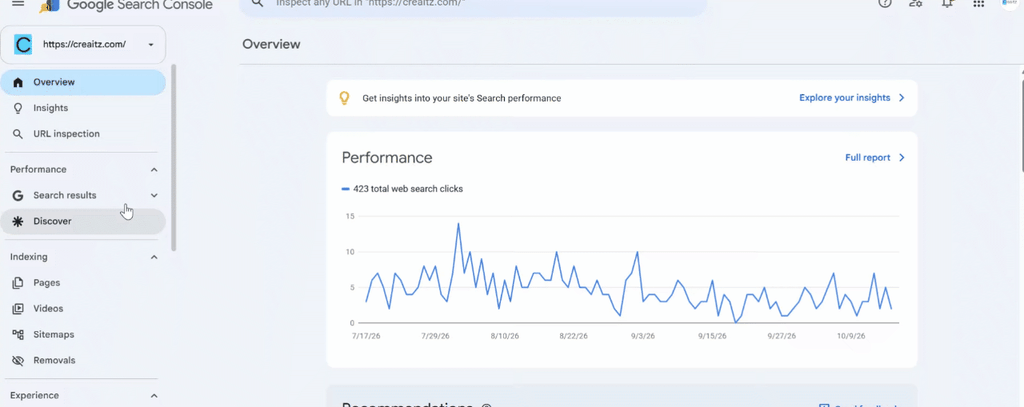
The available choices manage inclusion in specified Google generative features. A property may also inherit its choice from a parent property.
Review the current value and any inheritance before making changes.
Google says excluding your site prevents its links and content from appearing in the applicable features. The control is separate from AI-training controls and does not act as a ranking or inclusion signal for other parts of Search.
For client work, obtain approval before changing the setting. Record the decision, date and affected property.
Keep this control separate from any investigation into robots.txt, hosting restrictions or firewall behaviour.
Extend Your AI Search Reporting Beyond Google
Search Console gives you information about supported Google experiences.
To investigate selected questions on other AI platforms, add a clearly labelled monitoring layer.
Semrush’s Prompt Tracking supports custom-prompt monitoring across ChatGPT Search, Google AI Mode and Gemini.
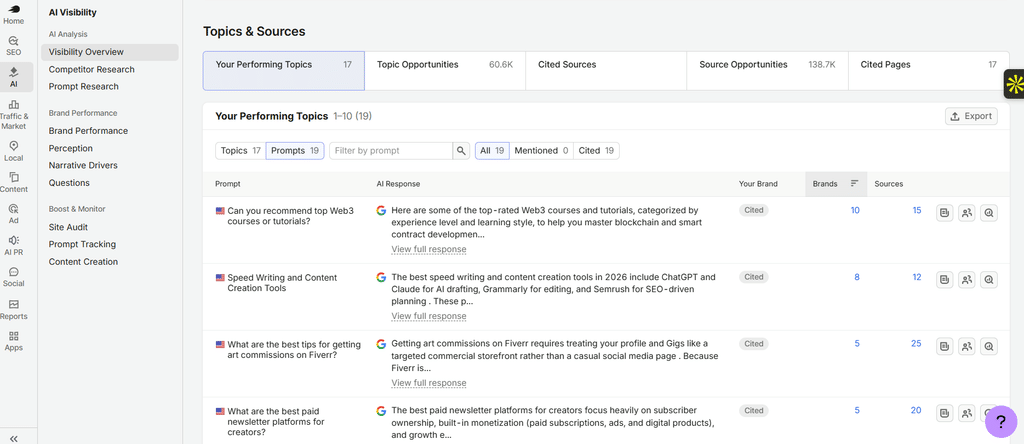
You can examine response snapshots, mentions and cited sources for the questions you track.
Use those observations to investigate questions such as:
- Does the response name your business?
- Which pages does it cite?
- Is your service described accurately?
- How do observations vary across platforms and dates?
Keep Google’s first-party impression counts and your monitored prompt results in separate columns. They have different coverage and measurement methods.
Our guide to tracking AI brand recommendations explains how repeated observations and a consistent question set can support clearer reporting.
You can try Semrush One free for seven days to investigate those responses alongside your SEO monitoring. Give every number a label before giving it a slide.

Keep Business Outcomes in Their Own Record
The dedicated Google report currently documents impressions. It does not provide a click-to-enquiry journey for each AI appearance.
Use your analytics and sales records to review recorded visits, completed actions and qualified enquiries. Preserve customer-reported discovery information separately.
For example, if someone says they found you through an AI assistant, record their wording and any article they remember. Keep the analytics source attached to the visit as well.
Our article on zero-click attribution covers how to organise that evidence and report uncertainty.
This lets you describe increased visibility while keeping revenue claims tied to the evidence available.
Build a Report You Can Explain
Your reporting becomes more useful when you can explain where each figure came from, what it counts and which question it helps answer.
Start with Google’s report scope. Check the pages, filters, aggregation and inclusion settings. Add selected cross-platform observations, then review business outcomes through your own records.
You can finish with a focused recommendation: investigate a page, correct a description, improve an explanation or continue observing.
That gives your client or team a clear next step supported by identifiable evidence.
